Guide the design
A few clear sentences can shape the first draft. Tell Motif Studio what the project is about, what must be included, and how you want it to feel. You do not need to describe every page.
Start with four parts
Use any of these that matter to you:
- Story: the trip, celebration, person, season, or purpose.
- Organisation: chronological, grouped by place or person, or centred on a few highlights.
- Look: colours, mood, amount of white space, and visual energy.
- Words: title, names, dates, captions, greetings, or a request for no added text.
Example:
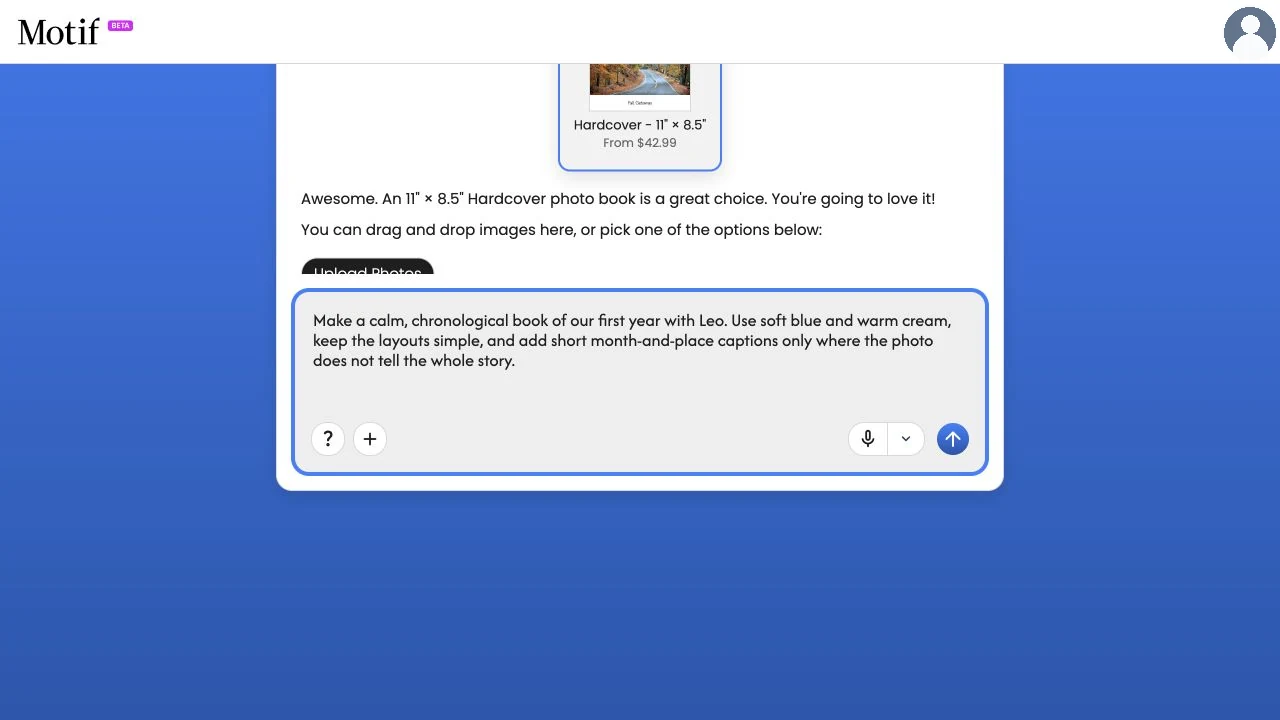
Make a calm, chronological book of our first year with Leo. Use soft blue and warm cream, keep the layouts simple, and add short month-and-place captions only where the photo does not tell the whole story.
Name the details that must be right
State exact requirements plainly:
- “Title the cover ‘The Rivera Family — Italy 2026.’”
- “Use the lone lion at sunset on the cover.”
- “Do not add captions.”
- “Include at least 80 pages.”
- “Start the calendar in September and begin weeks on Monday.”
- “Put ‘Thank you for celebrating with us’ inside the folded card.”
Put names, dates, and exact wording in quotation marks when helpful. Proofread them in the finished project.
Say “the wide sunset photo with the sailboat” or “the portrait of Ava in the yellow coat.” Descriptions are easier to match than device filenames you may not see in the editor.
Guide a photo book
Each named section needs a heading page followed by at least one photo page. If these sections exceed your page limit, Create asks for fewer headings or more pages.
If requested chapter or event headings cannot be preserved, Create asks you to revise them or continue without them. You can also explicitly ask for no maps.
Useful directions include:
- whether to follow time order or group the story by place, person, or event;
- moments that deserve a full page or panoramic spread;
- approximate page count, within the selected format’s limits;
- a limit on the total photos selected, such as “100 photos or fewer”;
- chapter or section titles for a longer story;
- caption frequency and tone;
- whether travel maps would help show the journey;
- a cover-photo description and exact title.
Motif Studio keeps every usable photo within the selected format’s limits. It leaves out near-identical copies, keeping one of each, as well as unusable frames and screenshots or documents without normal photo metadata; burst frames stay. If your photos don’t all fit the format or the page count you ask for, Create chooses which to use. To include every upload, duplicates and screenshots too, ask to use all your photos. If you ask for a page count the format or your photos cannot support, such as an odd number or more pages than your photos can fill, Create makes the nearest book it can and the completion message explains the page count it used. Add photos or allow repeats for a longer book. If every photo must be included and they cannot fit your page limit, Create pauses so you can select fewer photos or change the page count or density. Reply in Chat or upload more photos to continue. Photos repeat only with your permission.
Create selects enough photos to fill the format’s minimum page count. With a small upload, that can include similar shots. If you still don’t have enough photos, temporary placeholders you can replace fill the remaining pages; a no-text book asks first, as described below. If you ask for only some of your photos, such as “only photos of the children”, Create uses just those, along with similar shots of them, and fills the remaining pages with placeholders. If you ask for a number of photos, such as “the 30 best photos”, Create picks the strongest from every part of the collection, such as each stop of a trip.
If a no-text book needs more photos to fill the format’s minimum, you can choose Skip for Now to continue with temporary photo placeholders and replace them later. Create keeps the uploaded photos you asked it to include. Changing the selected format or your instructions also lets Create reconsider a paused request.
You can supply exact wording for the cover title, subtitle and first-page dedication. “No captions” removes photo captions. “No text” leaves the inside pages without captions or other page text and hides journey-map stop labels; cover and spine titles remain available. Provide your own diary text if you want it included; the assistant should not invent personal experiences.
Captions never stop a book from finishing. If a caption can't be written or matched to its photos, Create leaves that page without one and tells you if captions you asked for are missing. Captions use the font and size you request. You can add or edit captions in the editor.
For a chronological yearbook, you can ask for a month and year heading before each month’s photos and no other interior text. These headings use the photos’ saved capture dates; photos without dates do not receive a guessed month. Check those dates if photos were scanned or imported with a different timestamp. Each month with dated photos keeps at least one photo unless you ask for only some of your photos. If the headings and photos cannot fit your page limit, Create asks for fewer headings or more pages.
When you leave the book length open, larger photo selections use more photos per page on average. Panoramic spreads share the page budget with the other photos, leaving room for a mix of individual highlights and grouped photos. Unless you ask otherwise, about every fourth page shows a single photo edge to edge, and the book gains pages to make room for them. A panoramic spread appears about every eight pages when your photos include wide shots, and a short caption about every third page. A trip with several destinations opens each part of the journey with a title page. You can ask for no spreads, no captions or no title pages.
Example:
Organise the trip by Barcelona, Mallorca, and Madrid. Give each place a simple title page, use a journey map at the start, and reserve wide spreads for the coast. No captions except location names.
Journey maps render on detailed OpenStreetMap-based maps and stay readable at any scale, from a city walk to a multi-country route. You can also ask for a map of a named place even when your photos carry no location information.
During Create, photo books use at most four photos per page by default. Ask for a denser range, such as “6–9 photos per page,” or for custom, creative or less grid-like layouts. A range that starts at one, such as “1–9 photos per page,” keeps single photos and panoramic spreads alongside collages of up to that many; a range such as “6–9” puts that many on every page. You can limit custom layouts to particular page numbers. Density is balanced against the selected photos and the format’s page limits; if fewer photos fit your requested page count, the completion message explains the lower density. Custom grids respect print and photo-orientation rules; the message also identifies pages that needed a standard layout. Custom layouts fill the page from margin to margin, cropping photos moderately where needed to keep edges aligned and spacing consistent; a page that can’t be filled without an extreme crop uses a standard layout instead.
If you ask to keep trips or events separate within a page limit, Create may select fewer photos unless you requested every upload. Photos left out of the book remain in your project.
Guide a wall calendar
Choose calendar setup first, then describe how you want photos placed across the months:
Use snowy photos in January and February, garden photos from April through June, and the whole-family portrait in December.
After creation, you can refine holidays and month photos and add personal notes or photos to individual date cells in the editor.
Guide a memo book
Choose the inside-page style first. Then focus your direction on the four covers:
Make a coordinated dot-grid memo book with the blue mountain photo on the front, the trail map photo on the back, and a simple navy pattern on both inside covers.
The 48 inside pages use the selected ruling and are not individually designed.
Guide a card
Include the occasion, tone, exact wording, and which photo should lead:
Make a warm folded thank-you card. Use the group photo on the front with “Thank You,” and place “We loved celebrating with you” inside. Keep the design minimal with cream and forest green.
Check every name, date, address, and event detail yourself before ordering.
Refine after creation starts
You can send additional direction in Chat while the project is being prepared. Keep each message focused. If the first draft is already open, ask for a change and name its scope:
- “On this page, use only the two ceremony photos.”
- “Across the whole book, make captions shorter.”
- “Change only September to a three-photo layout.”
For the difference between a help question and an edit request, see Ask Motif Studio for help.
Review the result
Creative direction guides the draft; it is not a print approval. After creation:
- review every surface;
- check that must-use photos and exact wording are present;
- inspect crops, especially faces and important details;
- replace any remaining placeholders;
- use Undo, direct controls, or Chat for revisions.
Captions in a new photo book or memo book always fit their space. If a caption is too long for the size you asked for, Motif Studio sets it in a smaller size. If even the smallest size cannot hold it, the caption is shortened and ends with an ellipsis (…). The reply after creation says how many captions were changed. Edit the wording or size of any caption in the editor.
The same goes for other text in a new project: section titles, the cover title, memo book cover panels, calendar captions and page text, and card text. Text that is too long becomes smaller and, if needed, is shortened with an ellipsis (…). The spine keeps its size and shows a shortened title instead. A card greeting keeps its sizes in proportion, and only personal details such as names, dates or places are shortened, never the greeting itself. The reply after creation says what changed.