Understand creation progress
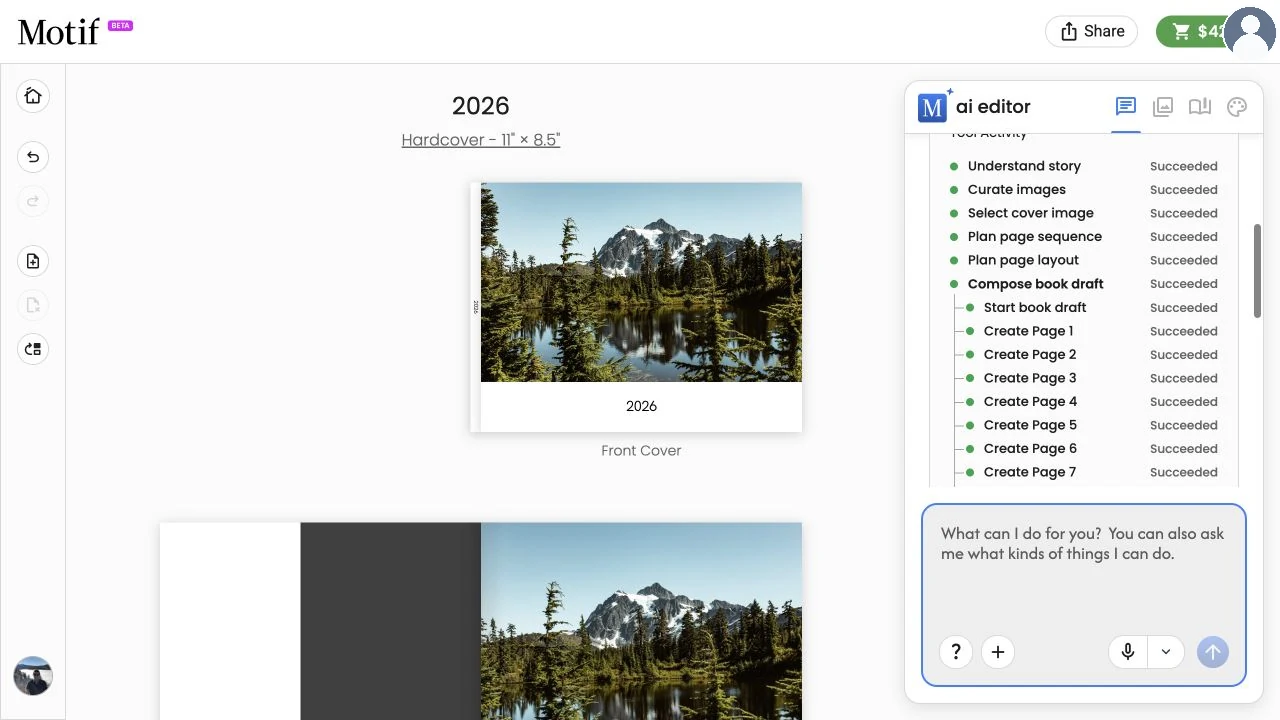
Motif Studio shows where your project is in the creation process. The main stages are Add Photos, Analyzing, and Laying Out. Product setup choices may appear before those stages.
Add Photos
Motif Studio uploads files from your device or downloads the items you selected from Google Photos. A progress bar may show the current file or download count.
Creation waits when:
- a wall calendar does not yet have one photo per selected month and Skip for Now has not been selected;
- a desk calendar has not had its start month and year chosen yet;
- a card has no photo and Skip for Now has not been selected;
- a memo-book ruling style has not been chosen;
- calendar setup or card occasion is still waiting for a choice.
Photo books, memo books, wall calendars, desk calendars, and cards can proceed without photos after you deliberately choose Skip for Now. For a partial wall-calendar upload, Motif Studio keeps the photos already added and uses placeholders for the uncovered months.
Analyzing
During Analyzing your images..., Motif Studio prepares the photos for design. The count shows how many images have been processed out of the known total. When complete, the message changes to Image analysis complete.
Analysis helps Motif Studio understand useful qualities such as orientation, capture order, visible content, location context, and similarity between frames. It does not remove the original photos from your project library.
Imports can discover or finish photos in batches. The displayed total and processed count may update as Google Photos downloads or file preparation completes.
Laying Out
Motif Studio builds the project’s surfaces, chooses photos and layouts, applies your direction, and prepares the saved first draft. An activity card may list the design steps as queued, active, or complete.
This stage can take longer for a large photo set or a long book. You can keep using Chat, but Add Photos may be temporarily unavailable while the current creation work is coordinated.
Keep working or leave
- You may continue asking questions in Chat while creation is active.
- Avoid repeatedly refreshing during a normal, advancing progress count.
- If you leave, reopen the saved project from My Projects to see its current state.
- An active Google Photos import can resume its status check after a refresh.
- Do not create a duplicate project merely because a large draft takes a few minutes.
When progress needs attention
Take action when Motif Studio displays a specific choice, missing-photo count, error, or retry button.
- Complete any visible product choice.
- Add the number of photos requested.
- For an upload error, refresh and retry only the failed photos.
- If Retry Book Creation, Retry Calendar Creation or Retry Card Creation appears, select it once and watch for new progress.
- If the same error returns, keep the existing project and follow Troubleshoot uploads and creation.
After a creation error, the page keeps checking the existing project. If creation resumes, the retry button disappears and progress returns. If the draft finishes, the editor opens automatically. Selecting retry while creation is already active or complete follows that same project without starting another draft.
First reopen the project from My Projects. The saved project may still be analysing or laying out even if the original browser tab stopped updating.
When the draft is ready
Motif Studio opens the editor when the project is ready to review. Creation completion means a saved draft exists; it does not mean the creative choices have been approved for print.
Next:
- Take a tour of the editor.
- Review every page or surface.
- Replace unwanted placeholders and address photo or text warnings.
- Make revisions directly or through Chat.
- Follow Review before ordering.