Crop, rotate, and filter a photo
Select any placed photo to open its photo toolbar. Your changes are shown on the page as you make them and carry through to the shared preview and printed project.
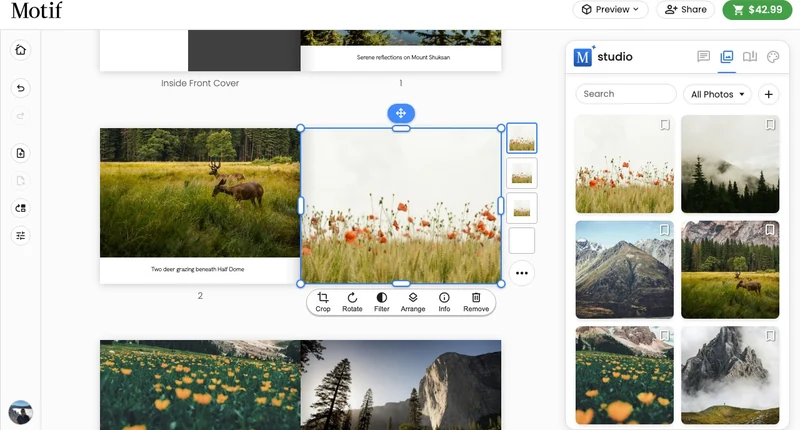
On a phone, Crop, Rotate and Filter are on the photo's own screen: tap the selected photo again to open it.
Automatic framing uses each photo’s own frame, including panoramic spreads, jacket flaps, and pages with maps. Layout changes retain the photo’s zoom while adjusting its position to the new frame. Calendar gutter changes also update framing. Unrelated edits keep your manual crop. To adjust an existing crop, drag the photo within its frame.
Reposition a photo
Drag the photo within its frame to choose which part is visible. This moves the image inside its existing position; it does not move the position itself.
For precise keyboard control while repositioning, use the arrow keys. Hold Shift with an arrow key to move in larger steps.
Crop and zoom
- Select the photo.
- Choose Crop.
- Use the zoom control to enlarge the photo, from 100% up to 300%.
- Drag the photo to centre the part you want to keep.
- Close the crop controls when the framing looks right.
Increasing zoom trims more from the edges. If important details no longer fit, lower the zoom or try a layout whose shape better matches the photo.
Rotate
- Select the photo and choose Rotate.
- Drag the rotation control to the angle you want. It settles near common positions such as 0°, 90°, and −90°.
With the photo toolbar active, Option/Alt + [ or Option/Alt + ] rotates in 15° steps.
Add or remove grayscale
- Select the photo and choose Filter.
- Move the filter control towards grayscale for a more black-and-white look. On a phone, the Filter band is a Saturation slider: full colour sits at the right end, and sliding left takes the colour out.
- Return the control to its original position to restore full colour.
The filter changes the appearance of the placed photo without changing the source image in your library.
View photo details
Choose Info to open Image Detail for a larger preview and any available photo information. This can help you confirm that you selected the right image before refining its crop. On a phone, the same control answers in place: a panel under the tool row lists the photo's file name, its pixel size and aspect ratio, and how large it prints sharply.
To use a different photo instead, see Place, replace, or move a photo. If a crop feels too tight, explore another arrangement in Work with pages and layouts.