Take a tour of the editor
The editor gives you two ways to work: select the project itself to make direct changes, or tell Motif Studio what you want in Chat. You can move between them at any time.
The image below is a map of the editor. On an eligible editor visit, the live guided tour highlights key editing areas one at a time inside your own project.
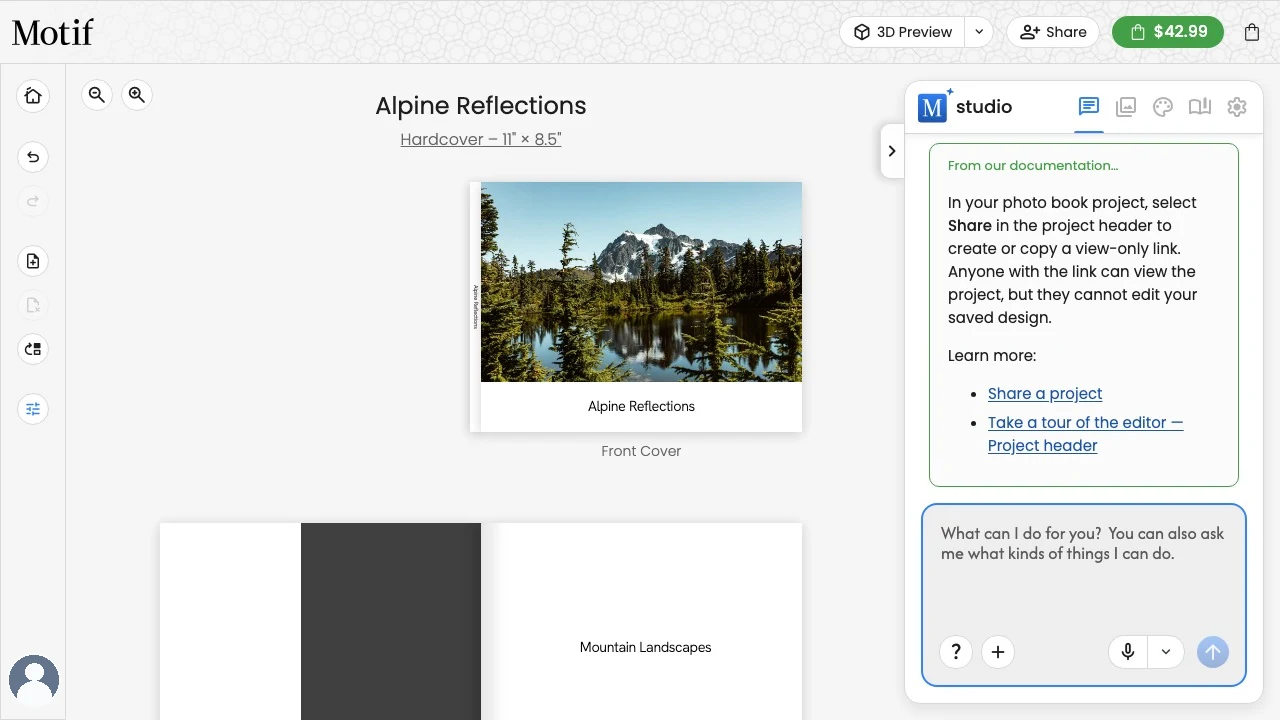
Follow the guided tour
The guided tour can open shortly after an eligible project settles in Edit view. It is shared by photo books, Memo Books, calendars, and cards, and it uses the real title, photos, text, and page controls in your project.
The tour on a phone
On a phone or tablet the photo book, calendar and card editors have their own layout, so several positions point somewhere else. See Use the editor on a phone or tablet for the layout itself.
- Tools on every page highlights Options in the bar above the page, which lists everything that page can do. If you are still on the All Pages list, the tour opens the first spread for you.
- Project options highlights the row of buttons above the sheet at the bottom — Assistant, Photos, Themes, Layouts, and Colours.
- The editor bar takes the place of The side rail: Undo, Redo, Grid, and Options sit together in the bar above the page. On a page the bar starts with a back button, which returns you to All Pages.
- Heading home steps back to the All Pages list and highlights Home, the first button in the bar there, which returns you to your projects. Home appears only in the All Pages list.
- The account menu is not shown while a project is open, so the tour skips that position.
Move through or close the tour
- Read each highlighted area, then select Next to continue. You do not need to try a tool or edit your project to advance.
- Using an editor control does not advance the tour or move its card into a corner. Select Next when you are ready, or Skip Tour to start editing.
- Select Skip Tour to close the tour. When you are not in the middle of an editor interaction, the
Esckey also skips it. While a title, photo toolbar, or text editor is active,Esckeeps its normal editor behaviour instead. - Select Done on the final card to complete the tour.
The editor remains usable while the tour is visible. If you open a dialogue, edit text on a phone, or an update temporarily locks the editor, the tour hides and resumes at the same position when that work is finished.
Restart the tour anytime
You can restart the guided tour anytime, even after you skip or finish it:
- Open the account menu (your avatar) and select Guided Tour.
- Or ask the assistant in Chat — for example, "give me a tour of the editor" — and the tour opens after its reply.
In the photo book, calendar and card editors on a phone or tablet the account menu is hidden while a project is open, so ask the assistant in Chat instead.
Completing the tour or selecting Skip Tour stops it from opening automatically again for that account in that browser. If you leave the editor before finishing or skipping, Motif Studio may offer the tour one more time. After two abandoned starts, it stops opening automatically. This status is stored in the current browser, so another browser or device—and clearing this browser's site data—can be treated as a first visit.
Project header
- Select the project title to rename it.
- Select Share to create or copy a view-only link.
- Select Add to cart to review the project and put it in the cart.
The price beside Add to cart reflects the current product and options when pricing is available. The cart icon shows how many items are waiting and opens the cart. In the Motif apps for iPhone, iPad and Mac, the same button reads Buy and opens checkout for this project directly, and there is no cart icon.
The cart can ask you to sign in. Use the same account as Motif Studio. See Order a project for help with an account conflict.
Project controls
The rail on the left contains quick project actions. Available buttons depend on what you are making.
- Back to My Projects returns to your project library.
- Undo and Redo step through recent edits.
- Photo books include controls for adding, deleting, and rearranging spreads.
On a computer, pause over an icon to see what it does. On a phone or tablet, the editor adapts these controls to the available space.
On a computer, a small tab with a chevron sits on the left edge of the side panel. Select it to tuck the panel away so your project fills the full width; the tab stays at the edge of the screen, and selecting it again brings the panel back to the tab you were on.
Project canvas
Photo books show covers and spreads. Wall calendars show cover and month surfaces; desk calendars show month cards without covers. Memo books show the four customisable cover surfaces plus a preview of the chosen inside-page style. Cards show the front and back, plus inside surfaces for folded cards.
For detailed controls, continue to Edit and design your project.
Chat panel
- Chat — ask for a project change or a how-to explanation.
- Photos — browse uploaded photos, search and filter them, or drag them into the project.
- Themes — apply a coordinated look when the tab is available.
- Products — review compatible product choices or product-specific options.
- Preferences — adjust calendar options when editing a calendar.
At the bottom of Chat:
- select ? for a quick help tip;
- select + Add Photos to upload or import more photos;
- type a message and select the arrow to send it;
- select the microphone to dictate a message where voice input is available.

Use the editor on a phone or tablet
On a phone or tablet, the photo book, calendar and card editors open on the All Pages list: a photo book shows its spreads, a calendar its covers and months one to a row, and a card its front, inside and back. Tap a page to edit it; All Pages, the first button in the bar above the page, returns you to your place in the list. In the list, Home takes its place and returns you to your projects. The Motif logo sits at the top left in both. The project's name sits on its own line above the pages, with the product, size and page count beneath it. The side panel becomes a sheet, with tabs along its top for opening each section. Where the screen is wide enough, Preview and Share carry their names beside their icons; on a narrower screen they show the icons alone.
In the single-page view, swipe sideways to move through the project, or use the round arrows either side of the page name. Paging runs in a loop, so stepping back from the Front Cover opens the Back Cover, and stepping on from the Back Cover returns to the Front Cover.
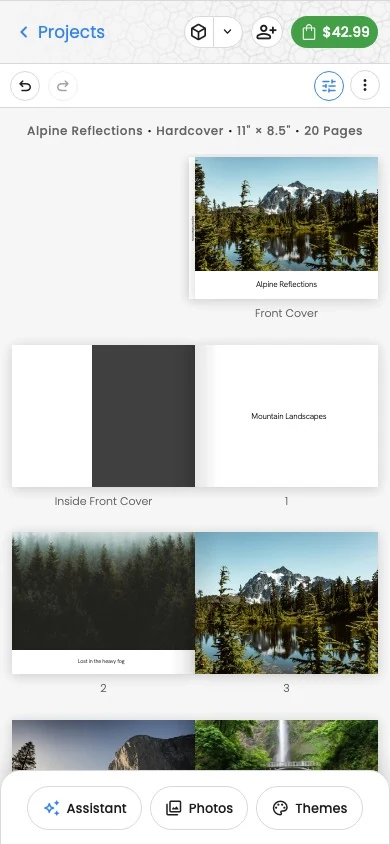
For more mobile details and keyboard shortcuts, see Mobile editing and keyboard shortcuts.
Edit with confidence
- Make one meaningful change at a time when you want an easy Undo path.
- Wait for an in-progress update to finish before making another large request.
- Review the affected page after a chat change; a completed update does not replace your visual review.
- Check the whole project again before ordering.