Find and organize your photos
The Photos tab keeps every photo for your current project close at hand. Use it to find an image, see which photos are already placed, or add another batch without leaving the editor.
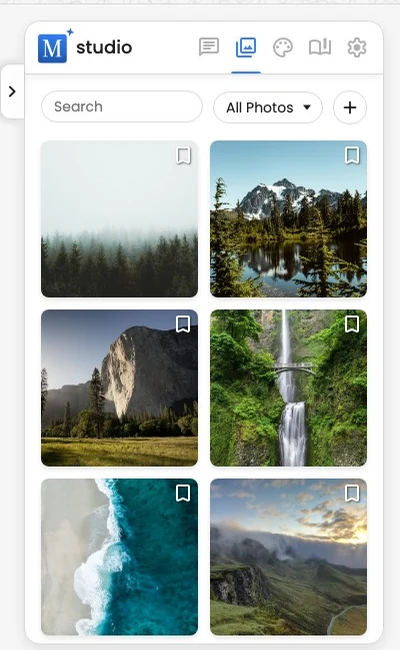
Open the photo library
- Open a project in the editor.
- Select Photos in the right-hand panel.
- On a phone, tap the Photos chip along the top of the collapsed sheet to open the library directly.
Select Add photos at the top of the library whenever you want to upload from your device or choose from Google Photos. After you add a batch, Motif Studio opens Recent Additions so the newest photos are easy to find.
Use transparent images
Newly added PNG images keep transparent and semi-transparent areas in the editor and PDF output. The page background or other design elements show through those areas.
Previously uploaded previews are not updated automatically. If another app has already removed transparency, use the original PNG file that still contains it.
Search and filter
Use the search field to narrow the visible photos. The placement filter gives you these views:
- All shows every photo in the project.
- Used shows photos that are already placed in the design.
- Unused shows photos that have not been placed.
- Recent Additions appears after a new batch is added and shows only that batch.
Filters change what you see in the library; they do not remove photos from the project or from any page.
Delete an image from the project
- Open Photos in the editor.
- On a computer, point to the image thumbnail to show Delete Image. On a phone or tablet, tap a thumbnail to show its delete control; tap the same thumbnail again to hide it. Select the delete control to delete the image.
- Review the confirmation, then select Delete Image again.
If a bookmark shows that the image is used, remove it from every page before deleting it. Motif Studio blocks deletion while any current page still uses the image, so other placements cannot silently change or break.
Deleting removes the copy from this project, including an older broken or Error tile. It does not delete the original from your device or Google Photos. Deletion is permanent and cannot be restored with Undo.
Motif Studio also blocks image deletion while checkout is in progress because an order may still need the project’s images. Try again after checkout finishes. The same applies while the project is in your cart and not yet ordered: its images stay protected until the order is placed or the cart expires.
Find photos by person
Photo-book projects may show a People strip when Motif Studio detects recurring faces.
- Select a face to show photos containing that person, including group photos.
- Select the same face again to limit the results to photos in which the selected people are the only detected people. An Only badge marks this view.
- While Only is active, select another face to turn off Only and combine the selections. Results must contain both selected people, but can include other people.
- Select a face for a third time to clear that person.
Other People means faces that are not listed separately as recurring people; they share one thumbnail. Select it once to show photos containing any of those faces; select it again to show photos containing only faces grouped under Other People. Blurry background faces and faces that cannot be recognized — for example the back of someone's head — are left out of People entirely, so Other People stays focused on actual people in your photos.
Manage People keeps those faces available as individual entries. Use it to name someone, add a relationship, merge two entries for the same person, choose a different profile photo, or hide a person. An unnamed person appears as a face thumbnail without a generic numbered name.
A person you merged from several entries shows a small stack of faces behind their profile photo, so you can see at a glance that they were combined. The stack stays after you save and carries into your future projects.
Names, relationships, merges, and hidden people follow you across projects. When you start a new project with the same people, Motif Studio recognizes them, brings their names back, and keeps anyone you hid out of the way — restore them any time by re-checking them in Manage People.
Refer to a photo by filename in Chat
In photo-book Chat, you can identify a photo by the filename shown in Image Detail, for example: “Replace the photo on page 4 with IMG_0042.JPG.” You can also ask to place named photos in filename order. If several photos have the same filename, Chat asks which one you want before choosing a photo.
Inspect a photo
Double-click a thumbnail to open Image Detail. You can view a larger preview, move to the previous or next photo, and review any available photo details. Close Image Detail to return to the same library view.
Ready to use an image? See Place, replace, or move a photo. To change the framing or look of a placed image, see Crop, rotate, and filter a photo.