Manage your projects
My Projects is the home for every saved photo book, calendar, memo book, and card in your account.
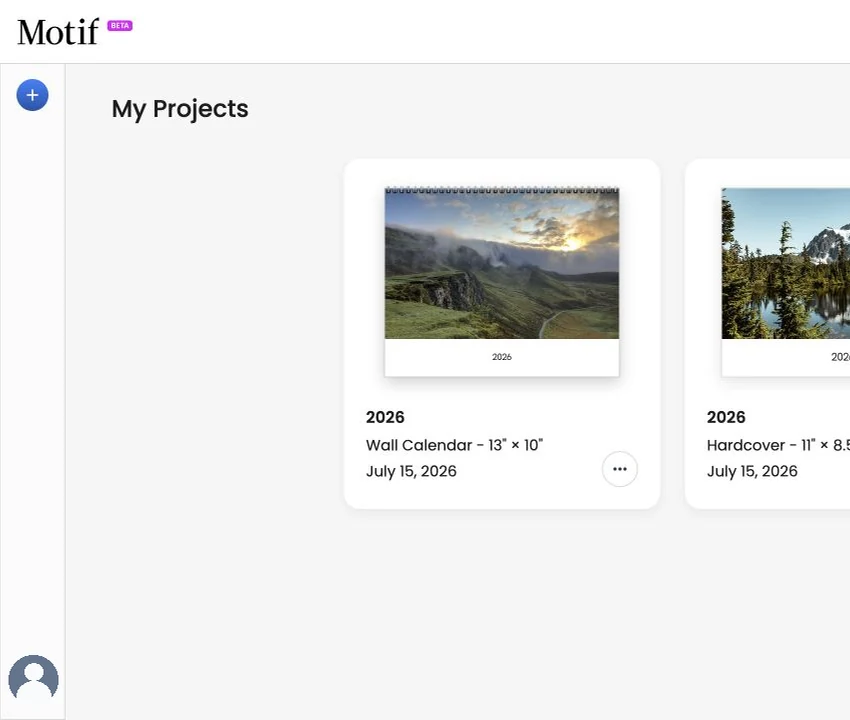
Open a project
Select a project preview to open it. Pointing to a card highlights it. With a keyboard, highlight a card and press Enter. Project previews show the product’s first designed surface. A desk calendar shows its complete first month card — photo or text layout together with the month and dates — while a wall calendar shows its front cover.
If you have many projects, use the previous and next controls to move between pages of results. Above them, the count tells you which projects you are looking at, such as 1–24 of 176. On a phone those controls sit in a bar pinned to the bottom of the screen, so they stay in reach while the list scrolls. Previous and next appear there as arrows, and when there are more page numbers than fit across the screen, the numbers slide sideways with the page you are on already in view.
Start a new project
Choose New Project or the + button in the left rail. If your account is empty, My Projects also shows a Create a Project button and starter tips.
Rename a project
- Point to the project card.
- Open its … menu.
- Choose Rename Project.
- Enter the new name and confirm.
The name in My Projects is separate from the title printed on the cover. Renaming the project does not rewrite the cover.
Clone a project
A clone keeps the current design, photo library, project settings, and People groups. It starts with its own chat and undo history; running imports, AI edits, and PDF preparation are not carried over. The original project is unchanged.
- Open the project card’s … menu.
- Choose Clone Project.
- Confirm the copy.
Cloning is useful when you want to try a different design while keeping the original project. You can also highlight a project and press Cmd/Ctrl + Shift + D.
Delete a project
- Open the project card’s … menu.
- Choose Delete Project.
- Read the confirmation, then confirm the deletion.
You can also highlight a project and press Cmd/Ctrl + Delete or Cmd/Ctrl + Backspace. Make sure you selected the intended project before confirming.
A project that is in your cart but not yet ordered can't be deleted until that order is placed or the cart expires.
Rename and Clone may be unavailable while a new untitled project is still being prepared. Delete remains available from its card menu.
For display and language choices on this page, see Change appearance, language, and country.