Welcome to Motif Studio
Motif Studio turns the photos you already love into photo books, calendars, memo books, and cards. Choose a format, add photos, and share a little direction. Motif Studio creates a first draft that you can refine before you order.
Use Motif Studio on iPhone, iPad, Mac, or the web
These guides cover Motif Studio in a web browser and in the Motif apps for iOS and macOS.
- iPhone and iPad (iOS): Get the Motif app from the App Store. Upload Photos opens your device's photo picker.
- Mac (macOS): Get the Motif app from the Mac App Store. Open the app directly to use Motif Studio. Select from Apple Photos appears when the built-in photo picker is available.
- Web browser: Select Open Motif Studio at the top of this Help Center. You can upload photo files or select photos from Google Photos.
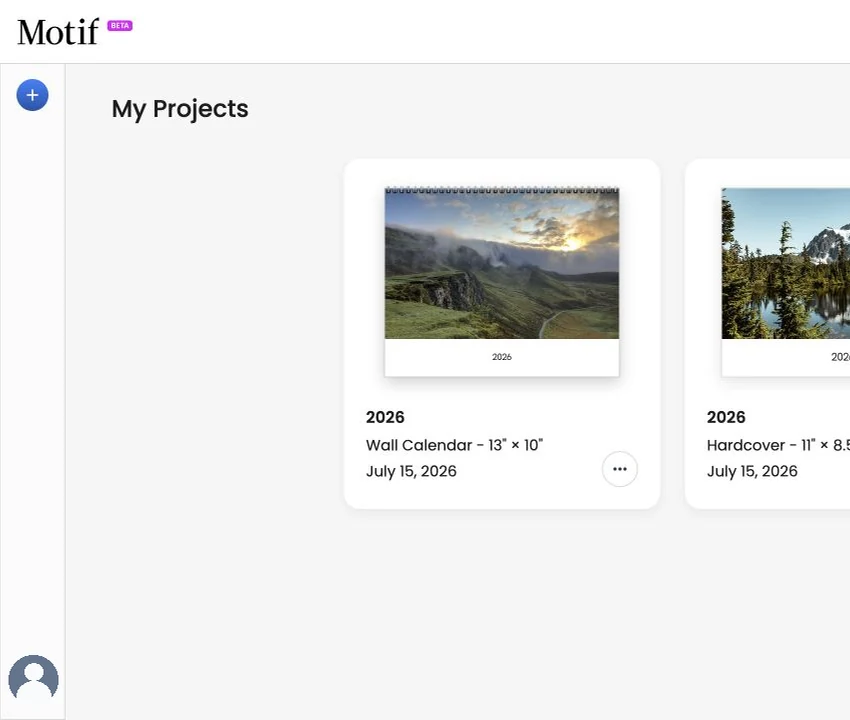
Sign in to the same Motif account on each device to access your saved Motif Studio projects in My Projects.
See Add photos from Apple Photos for the app-specific steps. For touch controls, see Use Motif Studio on a phone.
The earlier Photos-extension experience is Motif Classic. If you are using it, see Motif Studio and Motif Classic.
What you can make
- Photo books for trips, celebrations, family stories, portfolios, and everyday memories. Choose softcover, hardcover, or layflat in several sizes.
- Wall calendars with 12–24 months, your preferred start month, optional national holidays, and photos for every month.
- Desk calendars with 12 month cards for a tabletop, your preferred start month, and photos beside the dates.
- Memo books in a pocket-size pack of three, with photo-ready covers and your choice of ruled, dot-grid, graph, or blank pages.
- Cards in flat or folded formats, with portrait and landscape options for greetings and announcements.
Not sure which one fits? Compare all products.
Create your first project
If you are signed in to the Motif storefront, select Start creating to continue into Motif Studio using your existing sign-in when available. If Motif Studio is already signed in to a different account, it keeps that account. Sign out of Motif Studio before switching accounts.
If sign-in cannot start or finish, select Try again to retry. If an alert appears, dismiss it first.
If an old sign-in link opens while you are already signed in to Motif Studio, Studio can return you to My Projects for your current account. It does not switch you to the account from the old link. Storefront sign-in and cart requests still need to complete their sign-in checks.
Motif Studio can keep you signed in for future visits. Signing out of Motif Studio also signs you out of the service that manages your Motif account. If the Motif storefront was already signed in, it stays signed in separately.
When you open a page that requires sign-in in a web browser, Motif Studio continues automatically if you are still signed in. Otherwise, it opens the sign-in page.
If sign-out fails, an error message appears and the account menu reopens so you can try again.
- Sign in and open My Projects.
- Select Create a Project.
- Choose the product, size, and any options Motif Studio asks for.
- Add photos from your device or Google Photos.
- Tell Motif Studio about the story, mood, colors, or words you want included.
- Let the first draft finish, then review every surface in the editor.
- Select Add to cart when the project looks ready to print, then View cart to order it.
For the complete walkthrough, see Create your first project.
In the Mac app, you can leave sign-in by choosing Cancel on the sign-in page or at the bottom of its window. You return to where you started and can open sign-in again when you are ready.
You can begin with something as simple as “Make a warm, chronological book of our week in Italy.” Add more specific direction only when it matters to you.
How Motif Studio helps
Motif Studio can make a strong first draft from your photos, then help you revise it conversationally. You can also edit directly by selecting photos, layouts, text, colors, and other controls.
During creation, Motif Studio may:
- find a useful story order from photo dates and locations;
- favor stronger photos and leave out near-duplicates or unusable frames;
- choose layouts that fit portrait, landscape, and panoramic photos;
- add restrained captions, titles, colors, and maps when they support the story;
- create temporary photo placeholders when the product allows you to start without photos.
You remain in control. Review the draft, learn the editor, and use Undo if a change is not what you expected.
Get help while you work
Open Chat in the editor and ask a how-to question in everyday language. Motif Studio can answer from this Help Center and link you to the relevant guide. Select the ? button beside Add Photos for a quick tip.
Examples:
- “How do I replace a photo without changing the layout?”
- “What is the difference between hardcover and layflat?”
- “How do I add a birthday to my calendar?”
- “What should I check before I order?”
Learn more in Ask Motif Studio for help.
Before you order
Take a final pass through every page or surface. Look for photo-quality warnings, unintended blank areas, cropped faces, spelling, dates, and text near an edge. The editor helps you design, but you approve the final content.
Use Review before ordering as your final checklist.