Use colours, patterns, and themes
Use a single colour for a local change, a pattern for decorative detail, or a theme when you want a coordinated look across the whole project.
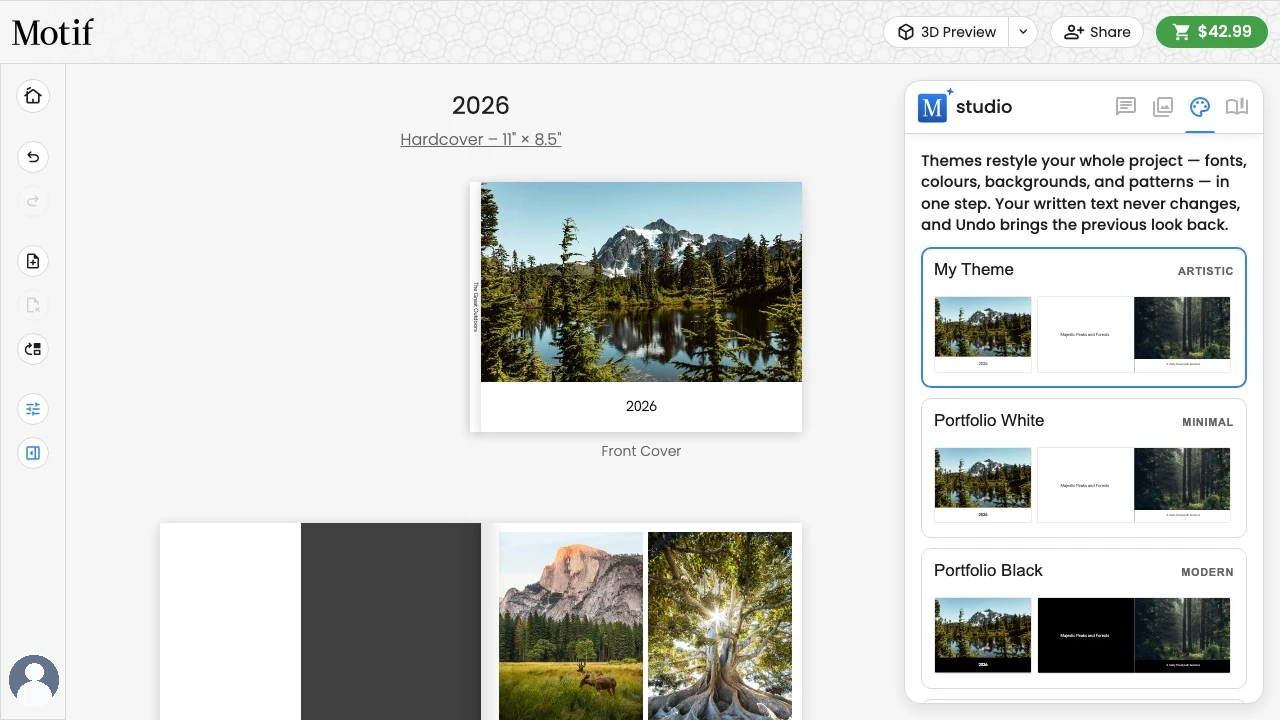
Change a page background
- Select or point to an open part of the page.
- Choose the background swatch beside the page — it mirrors the page’s current colour and pattern — or open Page options → Change Page Color… or Page options → Change Background Pattern….
- Use the Color and Pattern tabs in the panel that opens. Colour changes preview on the page as you explore and save when you close the panel; pattern choices apply right away.
On a phone, the swatch beside the page is off the edge of the screen, so use the chip row at the bottom instead: Colours opens the colour picker in a small panel just above the chips, and tapping outside it closes it and saves the colour you picked. Patterns opens a row of patterns — drag it up to see them all as a grid — and a tap applies one right away.
The panel opens on the tab that matters most for the page: Color normally, or Pattern when the page wears a pattern that covers its colour. Motif Studio adjusts existing text when needed to keep it readable. On a photo book, the outside front and back covers share a background; changing one changes both. The front-cover colour also carries into the binding. On a desk calendar, each month card shares one background across both the photo area and the month-and-dates area, so changing either side changes the whole card. When you apply a pattern, it spans continuously across the full desk card instead of restarting separately in each half.
Use the colour picker
The colour picker includes a full spectrum, a hue control, and three groups of swatches: your colours (any you saved, plus every colour your project already uses), the active theme's colours (including its white and black), and a preset palette of 120 colours arranged in 20 colour families, each shown as a row of six shades running light to dark. Scroll the swatch list to browse everything.
- Choose the … button beside the colour value, then Save Colour to keep the current colour with this project.
- Where your browser supports it, use the eyedropper to sample a colour visible on screen.
- Choose the … button, then Manage Colours to remove any swatch, including theme and preset colours. Save keeps your changes and Cancel restores what you removed.
The same picker is available for page backgrounds, text, captions, and photo borders.
Add a background pattern
- Select or point to the page.
- Choose the background swatch beside it, then the Pattern tab.
- Select a pattern preview, or choose No pattern to clear one.
Patterns sit over the page colour and appear in the editor, shared view, and printed project. They are available on most book, calendar, memo-book, and card surfaces. Calendar date grids automatically choose light or dark calendar text for readability.
To remove decorative patterns from an entire book, ask Chat to remove all patterns. Motif Studio clears the pattern art from every eligible surface without changing the page colours. If you also ask Chat to update the theme, it removes the theme's page-pattern rotation and cover pattern so that theme no longer prescribes decorative art.
Apply a theme
- Open the Themes tab.
- Review the theme cards. Each card previews your own project with that look.
- Select a theme to apply its coordinated fonts, colours, backgrounds, patterns, borders, spacing, and writing style.
On a phone, Themes is in the chip row of the All Pages list; open a page and the chip row shows that page's own tools instead.
A theme restyles the whole project in one step, replacing individual style choices so everything matches the new look. For a desk calendar, each theme card previews three complete month cards rather than a cover, because desk calendars are individual coverless cards. Your written text never changes. If the new look would make text too long for its box, Motif Studio sets that text in a smaller size; text that still does not fit keeps the theme's style and shows the red warning so you can shorten it. If you change your mind, use Undo.
The theme your project currently uses is always selected. When your current style is unique to this project, its named card appears first and previews the project exactly as it looks now.
The theme supplies the project's default margin and gutter. Changing project spacing updates its theme; editing a curated theme creates a copy for this project. Individual page spacing choices still take priority. See Adjust margins and gutters.
Apply a style everywhere
After you change a text style, caption style, photo border, or page background, Motif Studio may show a brief Apply to All message when other matching items exist. Choose Apply to All to restyle them all in one step (Undo brings the previous look back), or choose Dismiss — or simply keep working and let the message fade on its own — to keep the edit local. The toolbar's Apply to all… options remain the direct route any time.
Your theme keeps up with your edits: when you give text, captions, photo borders, or page backgrounds a new look, the project's theme quietly adopts it, so new pages, text, and photos arrive already matching your latest style — even when you keep the change local. That includes photo edges your changes reveal: switching a full-page photo to a smaller layout, adding something next to it, or resizing it into its own box gives that photo your current border style automatically.
Reuse a theme from another project
To give this project the same look as one of your other projects, open the Themes tab and choose Apply a theme from another project. Pick a project from the list and its theme — including any styles you applied everywhere there — is copied onto the current project.
To change just the words or typography in one place, see Add and format text and captions.