Ask Motif Studio for help
Use Chat to ask questions in your own words. Motif Studio can explain how the app works, link to the exact Help Center guide, or make a requested change to the project.
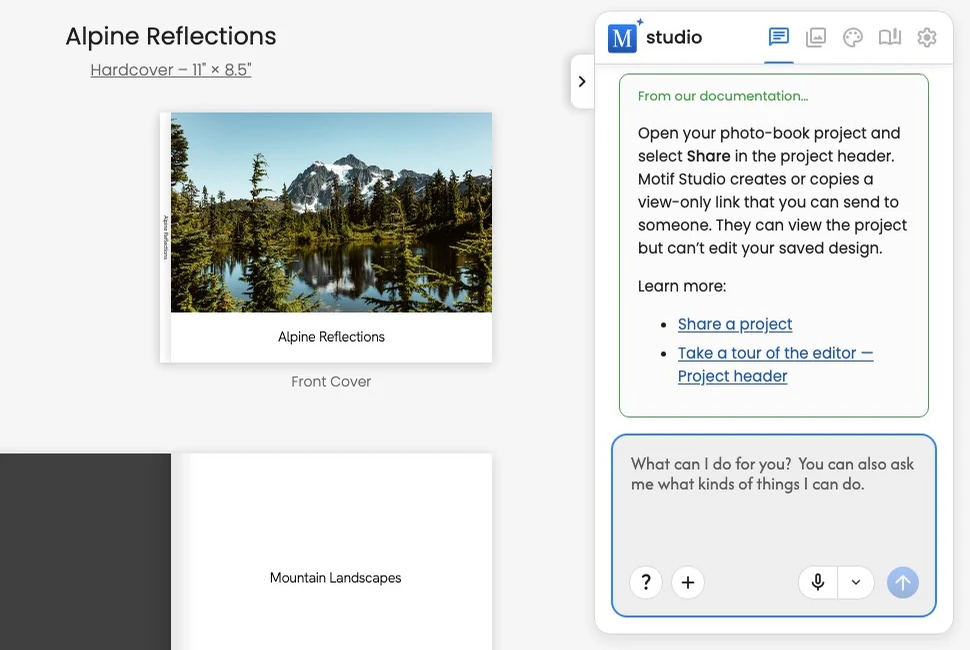
Ask a how-to question
- Open Chat in the create page or editor.
- Type what you are trying to do.
- Send the message.
- Read the answer and use its Help Center links for the full steps.
Helpful questions include:
- “How do I move this photo to another page?”
- “Can I change a softcover book to hardcover?”
- “How do I turn off national holidays?”
- “Why can’t I rearrange my memo book?”
- “What should I review before buying?”
How-to answers appear directly as help, without an Editing your project activity card. When the same message also requests a project change, the activity card shows only the edit Motif Studio is making.
Use the Help button
Select the ? button just to the left of + Add Photos. Motif Studio will remind you that help is available in Chat and show a useful tip. Select it again for another tip.
Know the difference between a question and an edit request
Motif Studio uses the wording and current project context to decide what you mean.
- Question: “How can I make all page backgrounds blue?”
- Edit request: “Make all page backgrounds blue.”
If you only want instructions, use phrases such as how do I, where can I, or what happens if. If you want the project changed, name the result you want and the scope: this photo, this page, selected pages, or the whole project.
For a change that affects the whole project, ask what will happen first if you are unsure. Then send the edit request when you are ready.
Ask for a project change
Strong requests are specific about the content, location, and desired result:
- “Use the mountain panorama across the next full spread.”
- “Change only this caption to ‘Sunrise above Zermatt.’”
- “Use warm cream backgrounds throughout the book, but keep the cover blue.”
- “Duplicate page 8 and place the copy right after it.”
- “Arrange the photos on this page as a mosaic with one large photo.”
- “Add ‘Mom’s birthday’ to May 14.”
- “Change this card to a thank-you occasion and keep the current photos.”
If Motif Studio needs a missing choice, it will ask a follow-up question. Review the changed surfaces after the update finishes, and use Undo if needed.
Chat previews page changes and asks for confirmation before adding, duplicating, or deleting a single page. It explains page pairings, any blanks added or reused, and the resulting count. Unsafe splits of two-page layouts are blocked; ask to act on the whole spread instead. If the book changes, review a new preview.
If you send a message right after an edit, Motif Studio saves that edit first, so Saving changes… may appear briefly before Chat starts. If the edit can't be saved, the message isn't sent: it stays in the message box with a note saying so. Check the edit, then send again.
Dictate a message
- Select the microphone beside the send arrow.
- Speak your question or request.
- Select the check mark to finish and transcribe, or × to discard.
- Review the text that was added to your current draft.
- Edit it if needed, then send.
You can also press and hold the microphone, then release when finished. The microphone menu includes options to detect when you stop speaking and to send automatically.
On a Mac or PC, Command/Ctrl + Alt + V starts or stops dictation from the editor.
Leave automatic sending off when names, dates, or exact wording matter. Reviewing the transcript first helps catch speech-recognition errors.
Use cited Help Center answers
Help answers include links to the Help Center guides that support the answer. Open a link when you need the complete workflow, product limits, or a visual example.
If an answer does not match what you see:
- Check that you are looking at the same product and screen described in the answer.
- Open the linked guide and review any product-specific note.
- Ask a follow-up with the product name and the control you see.
Understand project context
Chat can use the current project state to make a change or explain the controls that apply to it. Do not enter passwords, payment card numbers, or other sensitive information in a message. Keep questions focused on your photo project and the Motif Studio workflow.